
How to Effectively Manage Your Google Business Profile
In this blog post, I answer all your relevant questions about Google Business Profile (GBP) 2024.
Introduction
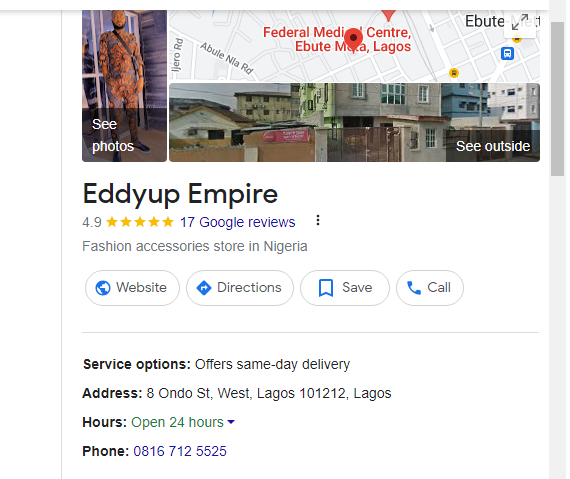
In the digital age, having a robust online presence is crucial for businesses of all sizes. One key aspect is maintaining an up-to-date and attractive Google Business Profile (GBP). Google Business Profile is a free tool that allows businesses to manage their online presence across Google, including search and maps.
Let’s unlock the power of Google Business Profile (GBP) with answers to your most burning questions! Whether you’re a seasoned entrepreneur or a curious newbie, this short blog will shed light on managing your online presence like a pro. So, grab your metaphorical cup of coffee and prepare to dive in!
What is a Google Business Profile (GBP)?
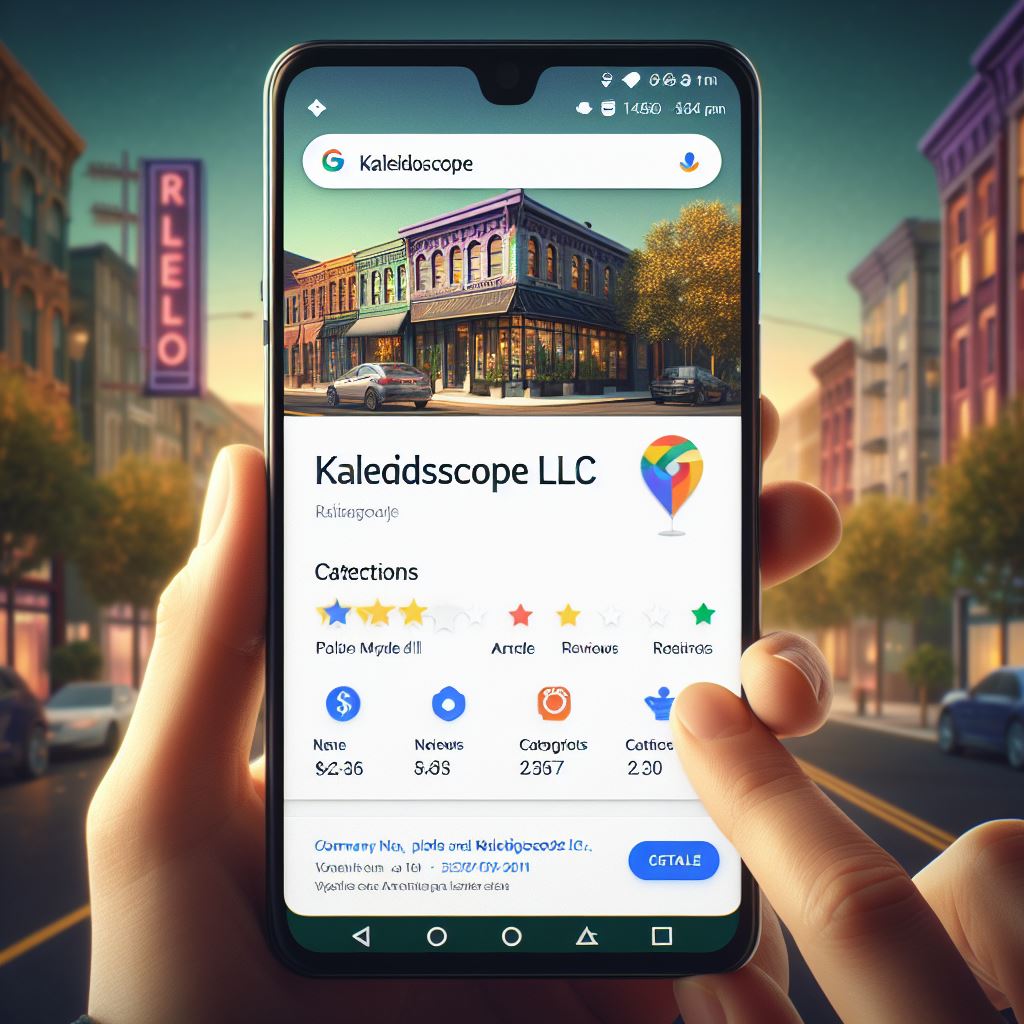
Imagine a virtual storefront on Google Search and Maps, attracting customers and showcasing your business to the world. That’s what GBP does! It’s your free tool to manage your online presence, share essential information like contact details and operating hours, and engage with potential customers. Think of it as your digital handshake in the vast online marketplace.
How to create a Google Business Profile?
Creating your GBP is a breeze! Just follow these simple steps:
- Visit https://www.google.com/business/ and sign in with your Google account.
- Click “Manage Now” in the top right corner.
- Add your business name and category.
- Choose your location and service area.
- Fill in your contact details, website, and operating hours.
- Verify your listing through postcard, phone call, or email.
Once verified, you’re officially on the map! Customize your profile with photos, descriptions, and posts to make it truly yours.
How to add GBP Picture?
A picture is worth a thousand clicks, especially for your GBP! Update your profile picture with these easy steps:
- Log in to your Google My Business account.
- Navigate to the “Photos” section.
- Select the “Profile” tab.
- Click on the camera icon to upload a new picture.
- Ensure the image adheres to Google’s guidelines for optimal display.
How to change your GBP Picture?
- Log in to your GBP dashboard.
- Click on “Photos” from the menu.
- Select “Add photo” or choose an existing image to replace.
- Upload your chosen picture, ensuring it’s high-quality and represents your brand well.
- Crop and adjust the image for optimal viewing.
- Save your changes!
Remember, a captivating profile picture can be the difference between a curious click and a forgotten scroll.
How to optimize your Google Business Profile?
Optimization is key to making your GBP shine! Here are some golden tips:
- Complete your profile: Fill in all the information Google requests, including descriptions, attributes, and services offered.
- Post regularly: Share updates, promotions, and engaging content to keep your audience interested.
- Respond to reviews: Address both positive and negative feedback promptly and professionally.
- Encourage reviews: Ask satisfied customers to leave reviews, boosting your credibility.
- Use relevant keywords: Include keywords people might search for when looking for businesses like yours.
- Regularly update business information.
- Add high-quality photos.
- Utilize Google Posts for announcements and promotions.
- Add photos and videos.
- Keep your business information up-to-date.
- Add products and services.
- Use Google Q&A to answer customer questions.
How to Find Google Business Profile ID?
- Log in to Google My Business.
- Click on the business profile you want the ID for.
- The ID is usually displayed in the URL at the end or can be found in the “Info” section.
How to delete a Google Business Profile?
If you need to close shop or move online, deleting your GBP is straightforward
- Log in to your GBP dashboard.
- Click on “Settings” and then “Advanced settings.”
- Scroll down to “Close my Business” and click on it.
- Choose a reason for deletion and confirm your action.
Remember, deleting your GBP is permanent, so ensure it’s the right decision before proceeding.
We’ve covered the basics, but the world of GBP is vast and exciting! Stay tuned for further deep dives into specific features, optimization strategies, and success stories.
Managing your Google Business Profile effectively is a vital aspect of your online marketing strategy. By following the steps outlined in this guide, you can ensure that your business is accurately represented, easily discoverable, and appealing to potential customers. Regularly updating and optimizing your profile will contribute to your online success.
Remember, GBP is your powerful tool to connect with customers and build your online presence. So, unleash its potential and watch your business flourish!
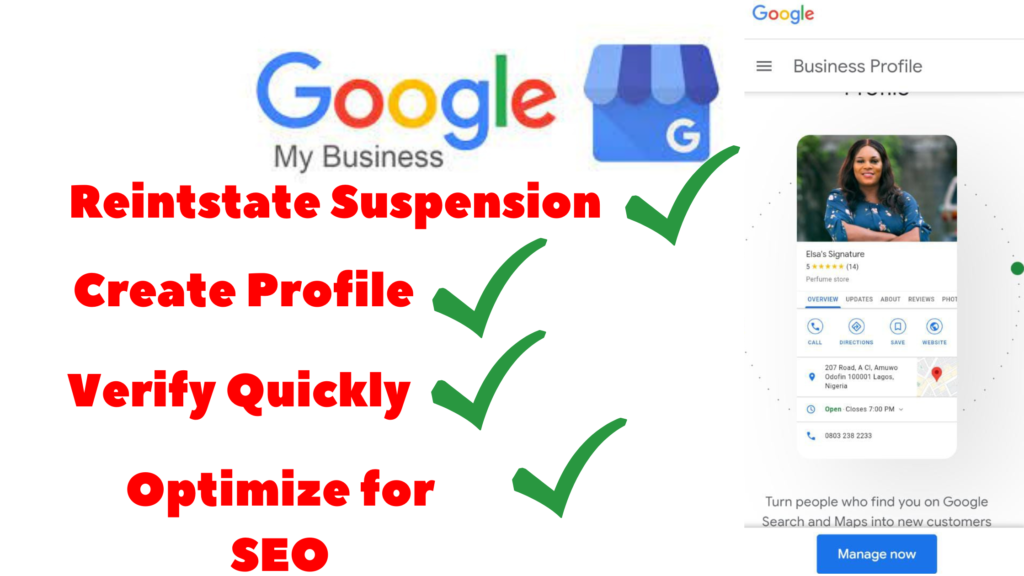
Need professionals to help you set up, rank, optimize or reinstate your suspended Google Business Profile?
About The Authur

Peter E
Peter is a writer, tech blogger, full-stack web developer and digital marketer
When he is not creating contents, he’s busy creating 3D avatar character animation videos or crafting winning and high-converting Facebook and Google ads for Shopify owners, Woo-commerce store owners, online sellers, start-up founders and business owners.
Click the button below to view Peter’s portfolio and contact him.